
Find Images Without Filenames via Local Semantic Search
When your library grows, filenames stop working. You remember the vibe, the scene, or the subject—but not the exact words. That is why local semantic search matters: it lets you find images by meaning and description instead of by filename.
This guide explains how to use semantic search by description in local folders with a practical workflow: index the right folders, write better prompts, refine results, and open the source path so the file becomes reusable again.
Why semantic search fixes the filename problem
Filenames are unreliable once your library reaches thousands of files:
- Cameras and screenshots create random names
- Assets are scattered across projects and exports
- You remember “what it looks like,” not what it was called
- Duplicates and near-duplicates create noise when browsing folders
Local semantic search solves this by matching the meaning of your description to the visual content. You can start with the semantic search guide to understand what kinds of phrases work best.
Semantic search vs reverse image search vs OCR: choose the right entry
| Your clue | Best method | Why it works |
|---|---|---|
| Only a written idea | Semantic search | Find images by description without a reference image |
| You already have a reference image | Reverse image search | Match visuals to visuals for the fastest hit |
| The image contains readable text | OCR text search | Narrow results using embedded text |
If you are in the “I remember the scene but not the filename” stage, semantic search is the most reliable entry. When results are too broad, add reverse image search or OCR as a second filter.
Step-by-step local semantic search workflow
The steps below match how FlareSeek and similar local search tools work. Follow them once and you will be able to repeat the workflow whenever you lose a file.
Step 1: index the right folders (do not scan everything)
Semantic search is only as clean as its scope. Start with the folders you reuse most and avoid noisy downloads or chat caches. If you need the setup walkthrough, see the first-time indexing guide.
Use these scope rules to keep local semantic search stable:
- Index 1-3 high-frequency folders first
- Exclude temporary exports or chat cache folders
- Add project folders in batches so you can verify results
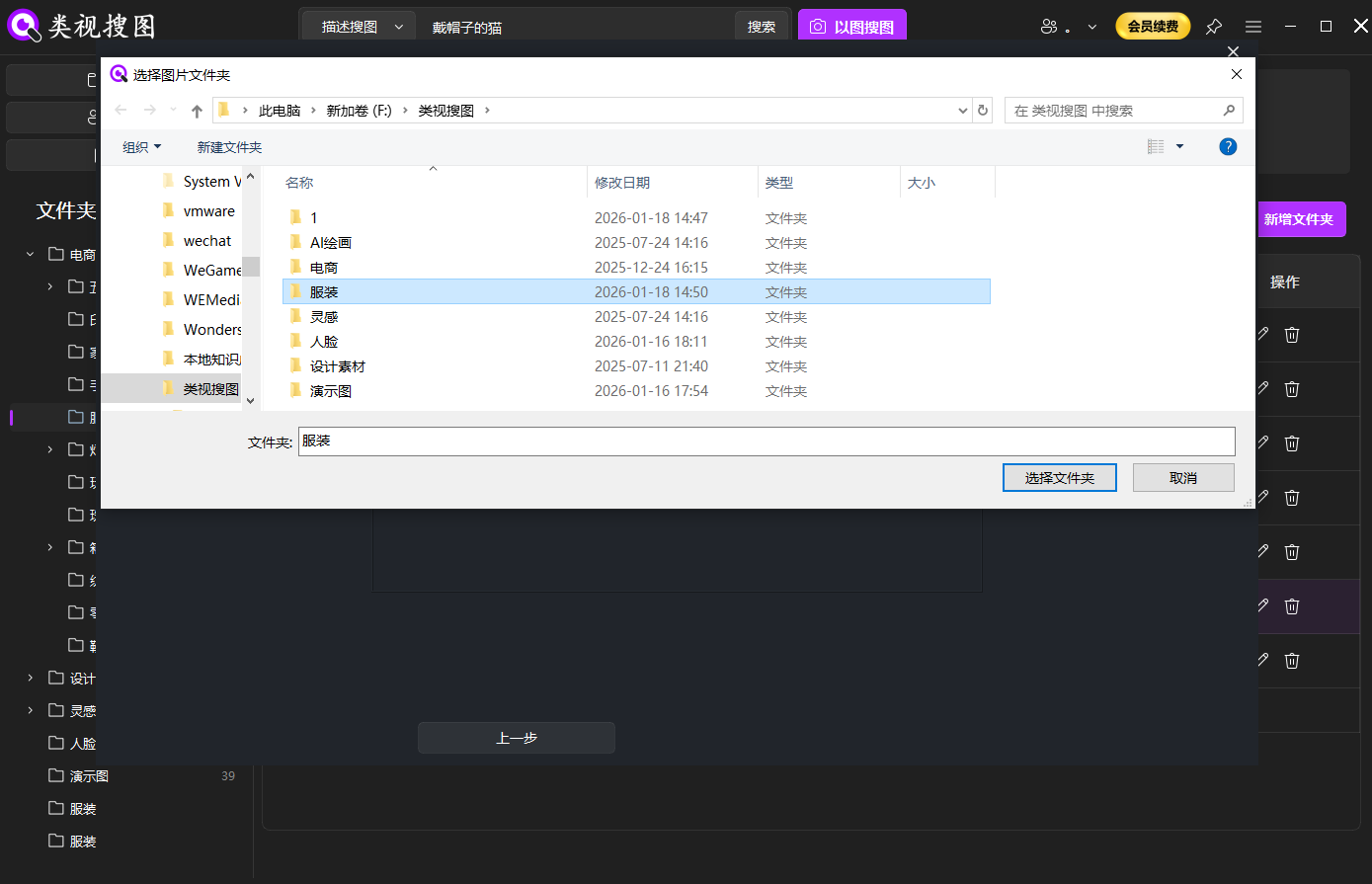 Caption: Index a few high-frequency folders first so semantic search stays fast and relevant.
Step 2: write a description prompt and start searching
Think in visible cues: subject + scene + style/material + light/mood. Example prompts:
- “white background product shot soft shadow minimal style”
- “warm sunset silhouette seaside cinematic tone”
- “cozy living room natural light wooden texture”
Build prompts in stages:
- Start with subject + scene
- Add one style word (minimal, retro, cinematic)
- Add lighting or material details to sharpen intent
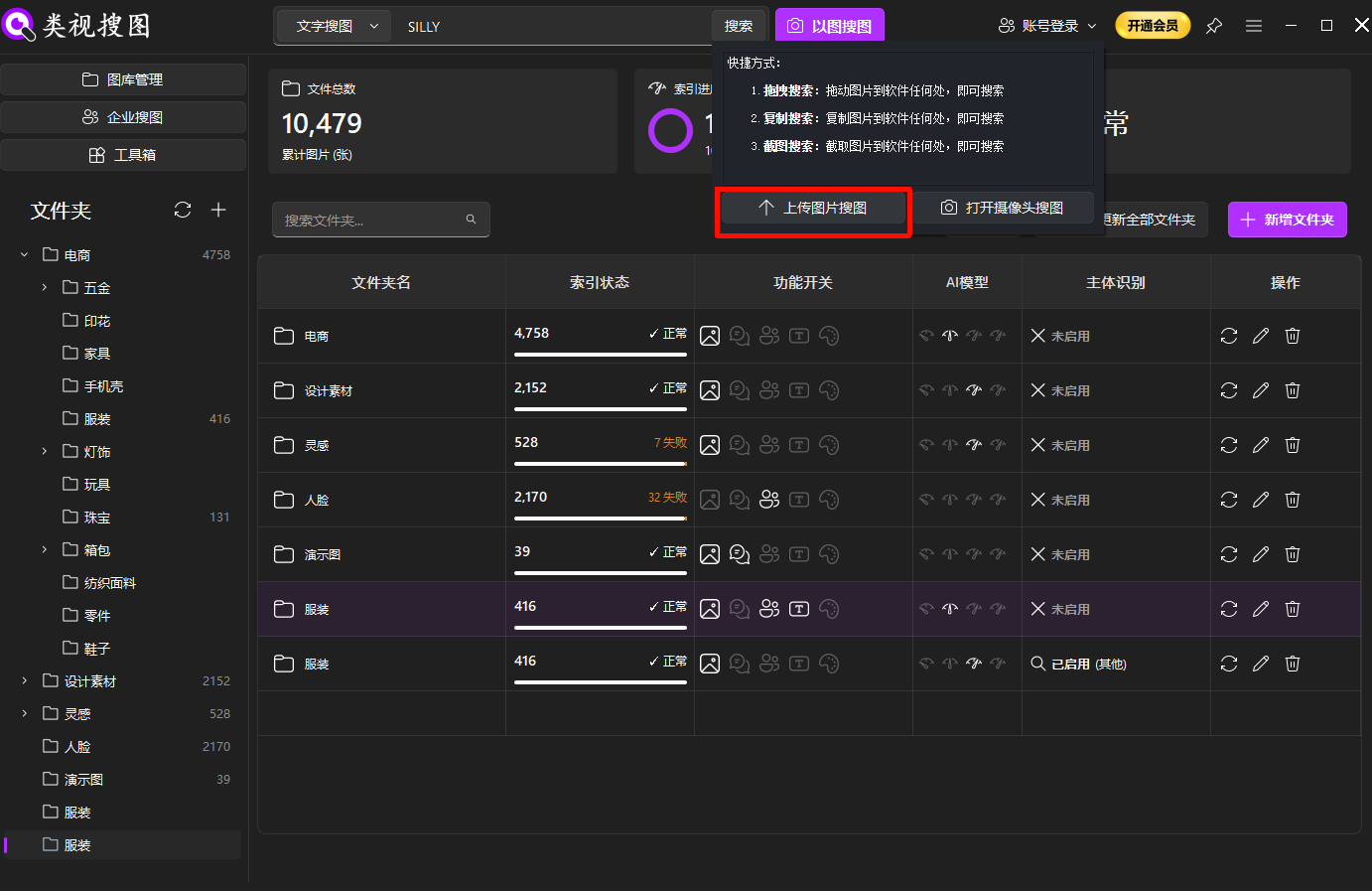 Caption: Use a description prompt to replace filenames when you only remember the scene or vibe.
Step 3: refine results with folders and similarity
When results are broad, converge first:
- Filter by folders to narrow the scope
- Sort by relevance or similarity
- Expand with synonyms only after you converge
For more help on the results page, see browsing and filtering tips.
If results still feel off, shorten the prompt and tighten the folder scope before adding more adjectives.
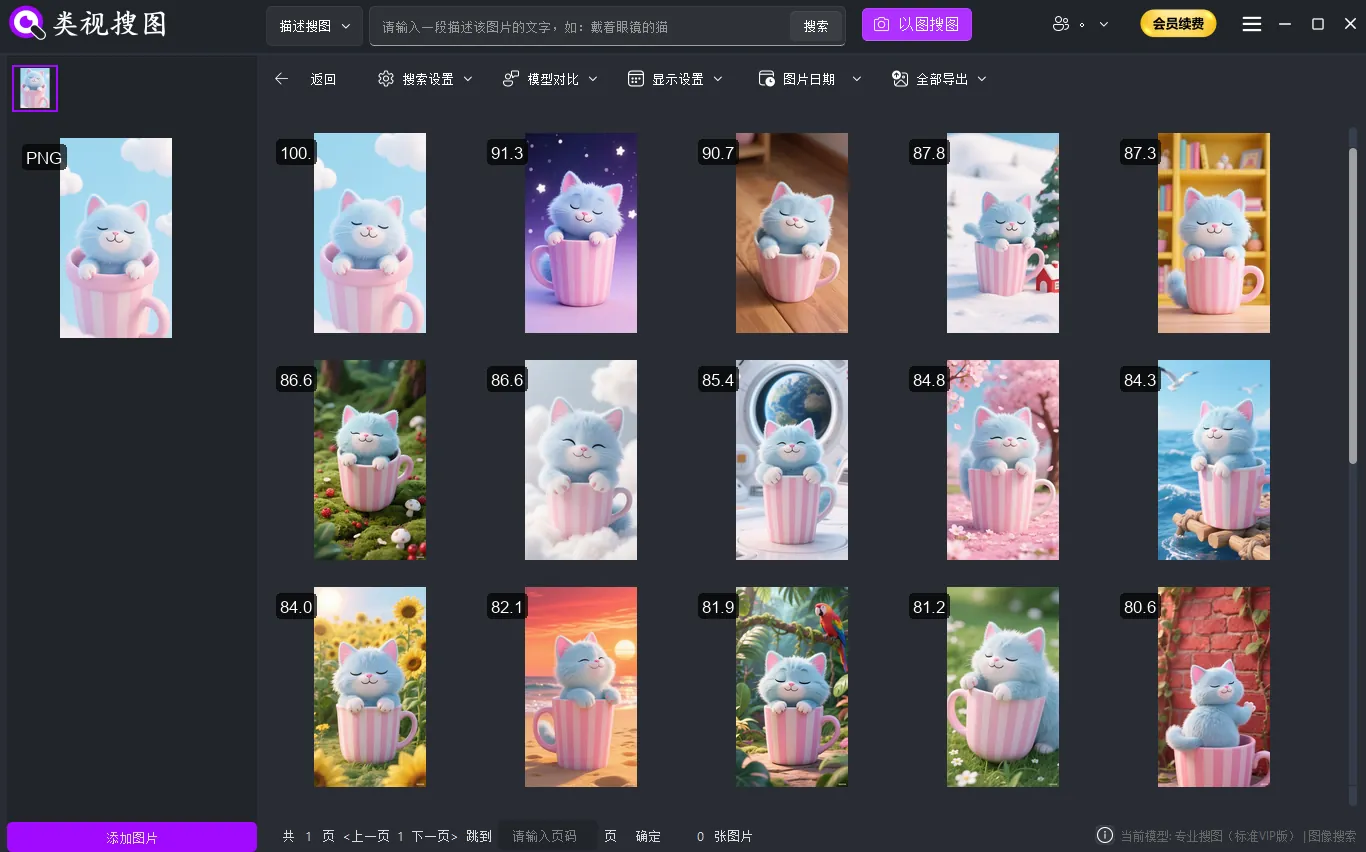 Caption: Converge with folder filters and similarity, then open the source path to retrieve the file.
Step 4: open the source folder and make the file reusable
Finding the image is not the end. Open the source folder, then copy, move, or rename the file so it will not get lost again. This is the step that turns a one-off find into a reusable library.
Quick actions after you open the source path:
- Move the best candidate into a “selects” folder
- Keep the original folder structure intact
- Add a short folder-level label like “hero,” “detail,” or “reference”
Write better semantic search descriptions (a prompt formula)
Semantic search accuracy depends on how visible your description is. Use this simple structure:
- object/scene + action + style/material + lighting/mood + key elements
Examples you can reuse:
- “minimal product poster white background soft shadow”
- “street portrait rainy night neon reflections”
- “flat lay desk setup neutral palette soft light”
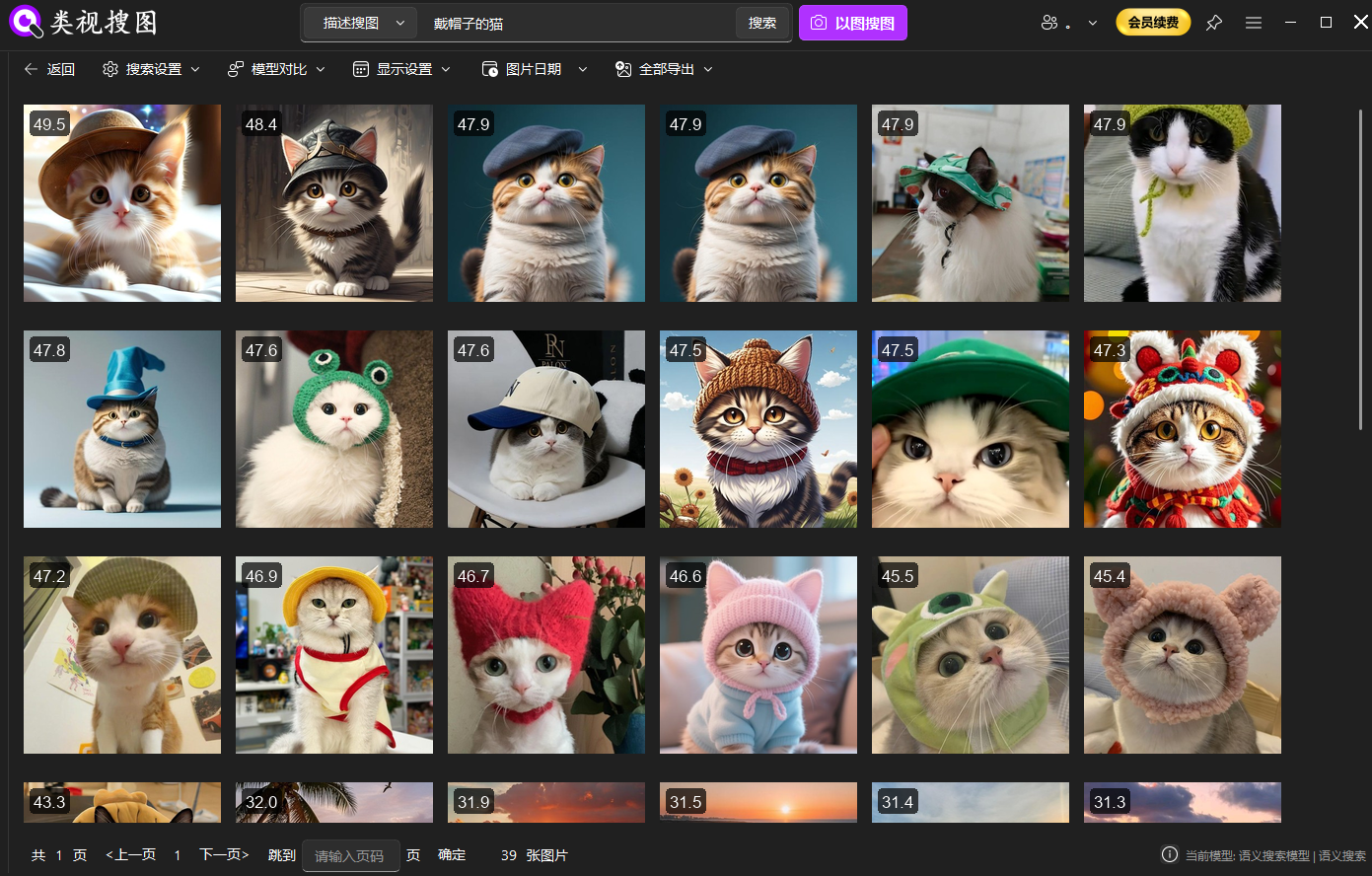 Caption: Translate abstract intent into visible elements to improve semantic search hit rates.
Prompt building blocks you can reuse
- Color palette: muted tones, high contrast, pastel, monochrome
- Composition: centered subject, wide angle, flat lay, close-up
- Material: wood grain, brushed metal, glass reflections, fabric folds
- Lighting: soft daylight, backlight, rim light, studio shadows
- Mood: calm, energetic, cinematic, editorial
Prompt examples by workflow
If you work in ecommerce ops, start with product + background + lighting: “white sneakers product shot soft shadow high key.” If you are in marketing, emphasize scene + mood: “cozy cafe tabletop warm light lifestyle.” For design references, add layout cues: “mobile app onboarding screen minimal layout pastel gradient.”
Local semantic search responds best when prompts align with folder scope, so pair each prompt with the right project or campaign folder before expanding synonyms. If prompts still miss, remove style words, keep only subject and scene, then add one detail at a time to see what your library can actually match.
Common prompt mistakes to avoid
- Stacking too many adjectives before narrowing scope
- Using abstract words without visible cues
- Mixing unrelated subjects in one prompt
Make results reusable: a quick organization checklist
Semantic search gets you the file fast, but reuse comes from light organization:
- Create a selects folder for the best results
- Keep project-based top levels with purpose-based subfolders
- Remove obvious duplicates to reduce noise in future searches
- Rename folders, not files to keep structure stable
Weekly, run a quick cleanup to keep local semantic search accurate: remove obvious duplicates, move outdated drafts, and confirm new folders are indexed.
If you notice missing or irrelevant results, use the troubleshooting checklist before re-indexing everything.
FAQ
Q: What if my description is too abstract?
A: Replace abstract words with visible cues: “premium” → “low saturation, whitespace, thin typography, soft shadows.”
Q: What if results are too many?
A: Filter by folders first, then increase similarity thresholds. Expand with synonyms only after you converge.
Q: What if results are too few?
A: Remove nonessential modifiers and confirm indexing has completed for the target folder.
Summary and next step
If filenames do not work anymore, semantic search gives you a reliable path: index → describe → refine → open source folder. Once this loop is stable, finding files becomes a repeatable workflow instead of luck.
Next step:
- Index one core folder
- Test five real description prompts
- Save the best hits into a reusable selects folder
Get started: /download