
Fuzzy Filename Search for Local Image Management
When a local photo library grows, filenames collapse into timestamps, abbreviations, and version fragments. You might remember a project name or a SKU, but not the exact file path. Fuzzy filename search is the most basic and dependable way to recover files when you only remember part of the name.
This guide explains a local-first workflow: index the right folders, split keywords into searchable fragments, converge results fast, and rename or archive files so the next search is even easier. It is designed for teams and individuals who want private, repeatable image management on Windows.
From first principles, filenames are the lightest form of metadata you already own. Fuzzy filename search turns partial memory into a reliable filter, so you can act on real files without guessing where the folder lives. The goal is not just to find one file, but to make the next search faster.
When fuzzy filename search is the right tool
Fuzzy filename search shines when you remember a clue from the filename, not the picture itself. Common cases include:
- Screenshot archives where filenames include meeting topics or project names
- Product image folders with SKUs, colors, and angles embedded in the name
- Design assets tagged with sizes, channels, or versions
- Client deliverables that reuse consistent prefixes across revisions
If you remember the visual content instead, use visual search; if you remember text inside the image, OCR is faster (see the text search guide). A simple rule helps avoid the wrong entry point: remember a keyword → fuzzy filename search; remember the image → visual search; remember text → OCR.
For example, if you recall “v2” and a project name, fuzzy filename search is faster than re-opening folders. If you only remember a mood board or a specific layout, visual search is more precise. Picking the right entry point saves the most time.
Signals that fuzzy filename search is the right tool:
- You can name at least one stable prefix or SKU
- The file name includes a version, date, or size fragment
- You need to pull a series of revisions, not just one image
Pair fuzzy filename search with OCR or visual search
When a library is large, the fastest path is to combine methods. Start with fuzzy filename search to capture the whole series, then use OCR or visual search to isolate the precise version you need. This avoids missing older revisions while keeping the result set manageable.
Step 1: index the folders you actually use
Fuzzy filename search depends on a clean index. Start with 1–3 high-frequency folders such as “screenshots,” “product shots,” or “client projects.” Avoid downloading caches or temporary exports at first. For initial setup, follow the first-time setup guide.
Choose folders with consistent naming habits. The more uniform the naming, the fewer irrelevant hits you will see. After indexing, keep folder structures stable and sync when new files arrive so the index stays accurate.
Quick scope criteria:
- Single purpose: avoid mixing downloads with project assets
- Stable naming: folders where prefixes or versions already exist
- Frequent reuse: directories you search for at least weekly
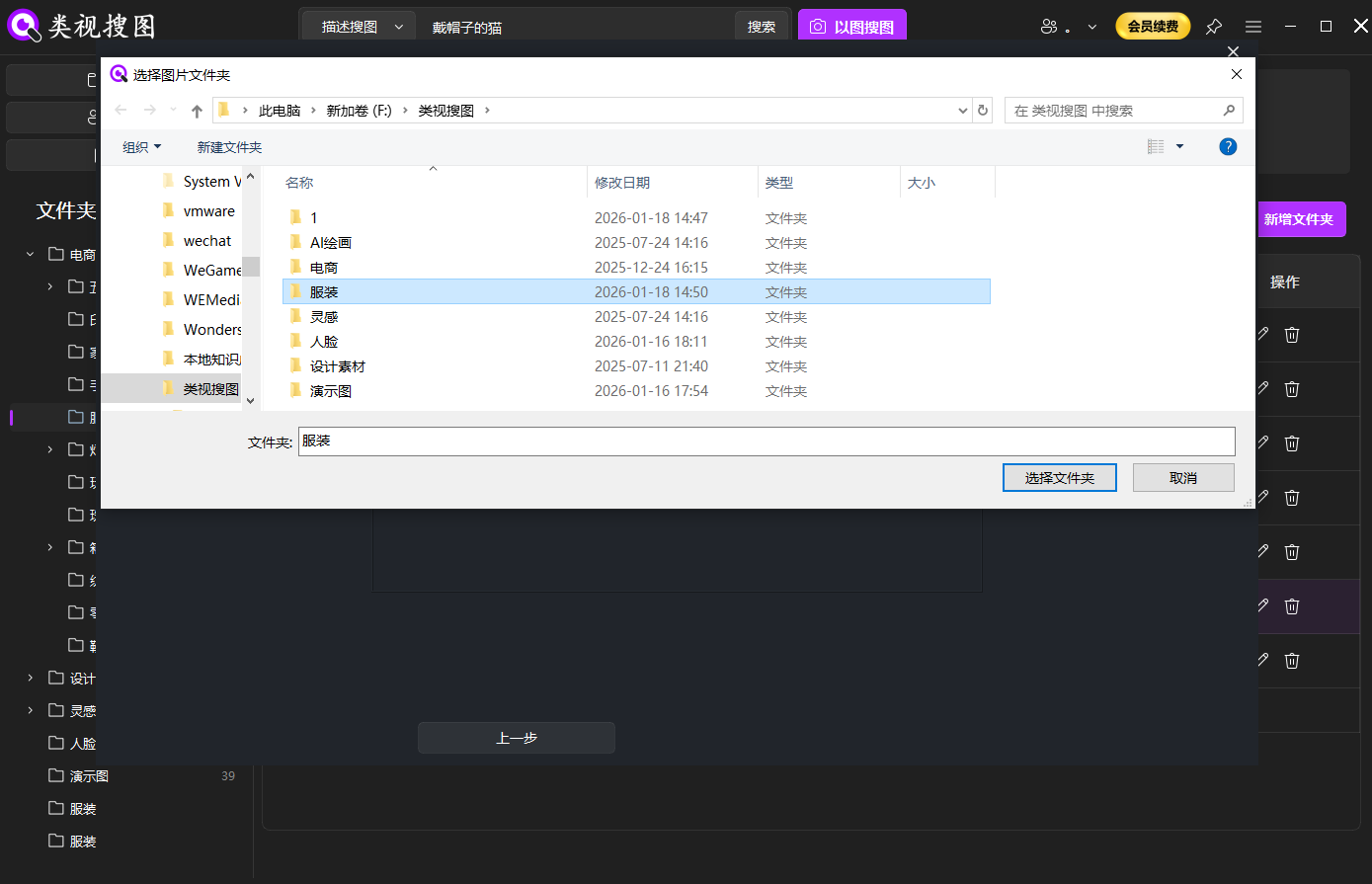 Caption: Fuzzy filename search works best when the indexed folders are focused and consistently named.
Step 2: start fuzzy filename search with short keywords
You do not need the full filename. Focus on the segment that best distinguishes the file:
- Subject terms: project name, client, product (e.g., “BrandA”, “AirMax”)
- Qualifier terms: channel, use case, format (e.g., “hero”, “detail”, “xhs”)
- Version terms: v1/v2, dates, sizes (e.g., “2026-01”, “1080”)
A reliable rule is the “three-part split”: subject + qualifier + version. Any two parts usually locate the right series. You do not need wildcard syntax; fuzzy matching is about short, distinctive fragments.
If you have to choose, prioritize the version fragment. It is the fastest way to reduce noise because most libraries only keep a few versions per asset.
If you use hyphens or underscores, keep them consistent. Fuzzy filename search will still match, but consistency makes it easier to build muscle memory and reduces false positives across series.
Team tip: agree on a shared abbreviation list (for example, “hero,” “detail,” “packshot,” “kv”). This keeps fuzzy filename search predictable across collaborators.
Examples:
review_payment_v2.png→ search “payment v2” or “review”sku-3201-white-front.jpg→ search “3201 front”poster_brandA_1080x1350.psd→ search “brandA 1080”
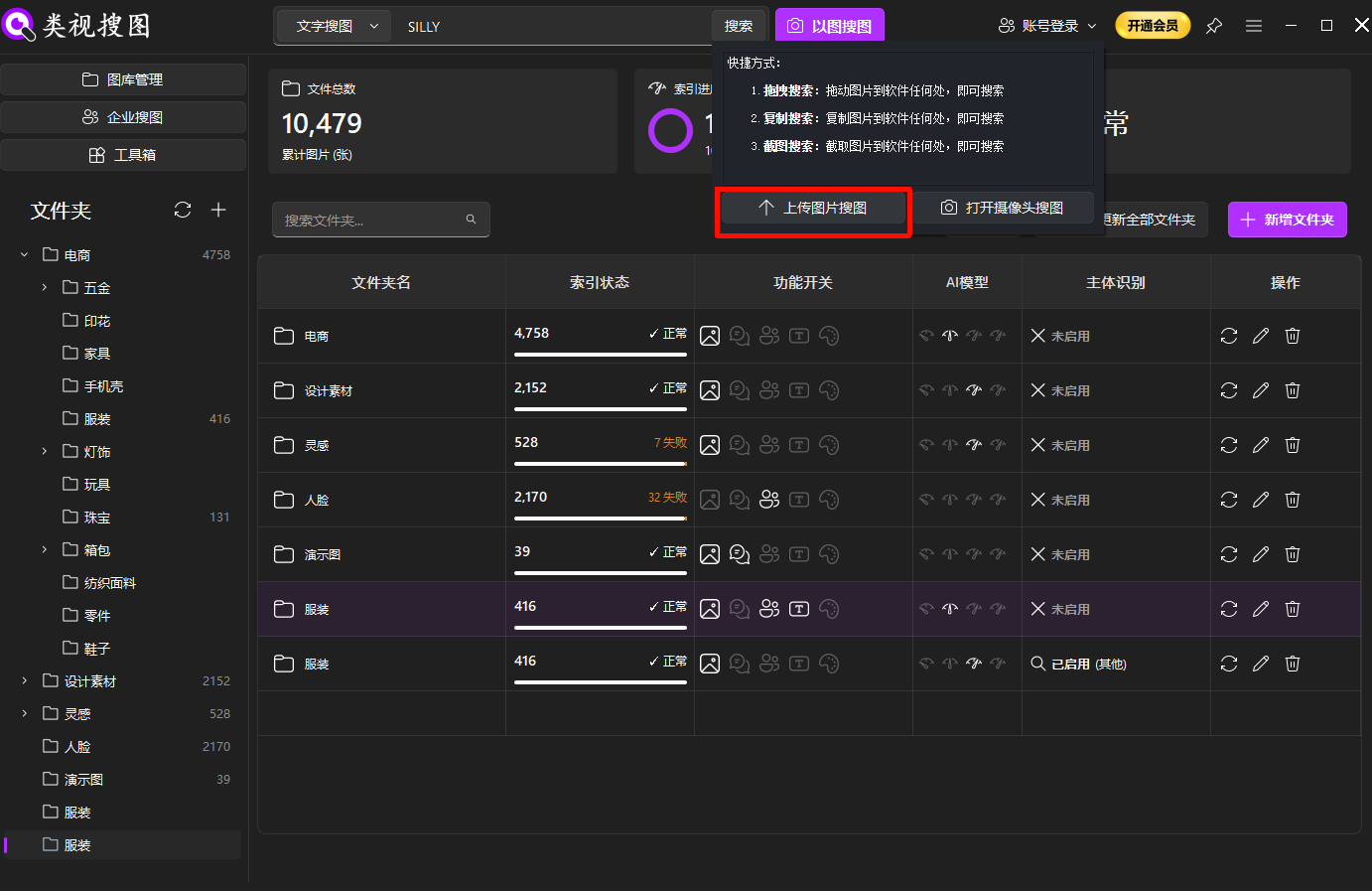 Caption: Start with the shortest distinctive keyword fragment, then refine once you see the series.
Step 3: refine results and open the source folder
If results are too broad, reduce the scope in this order: folder → time range → extra keywords. This keeps the list short without losing older versions. The browsing and filtering guide offers additional filters and shortcuts.
A practical refinement workflow looks like this:
- Filter to the most relevant folder or project
- Add a version term such as “v2,” “final,” or a date
- Narrow the file format when necessary (PSD, PNG, JPG)
Once the target appears, open the source folder and take action. Rename the file with a consistent version tag and move older drafts to a “To-Review” or “Archive” folder. That step is what makes future fuzzy filename searches cleaner and faster.
If you collaborate with others, agree on one versioning pattern per project (for example, v1/v2/final). A shared naming habit prevents two people from creating incompatible filenames for the same asset.
Double-check that the final version is clearly labeled (e.g., final or approved) before archiving. It prevents confusion when multiple stakeholders request “the latest file.”
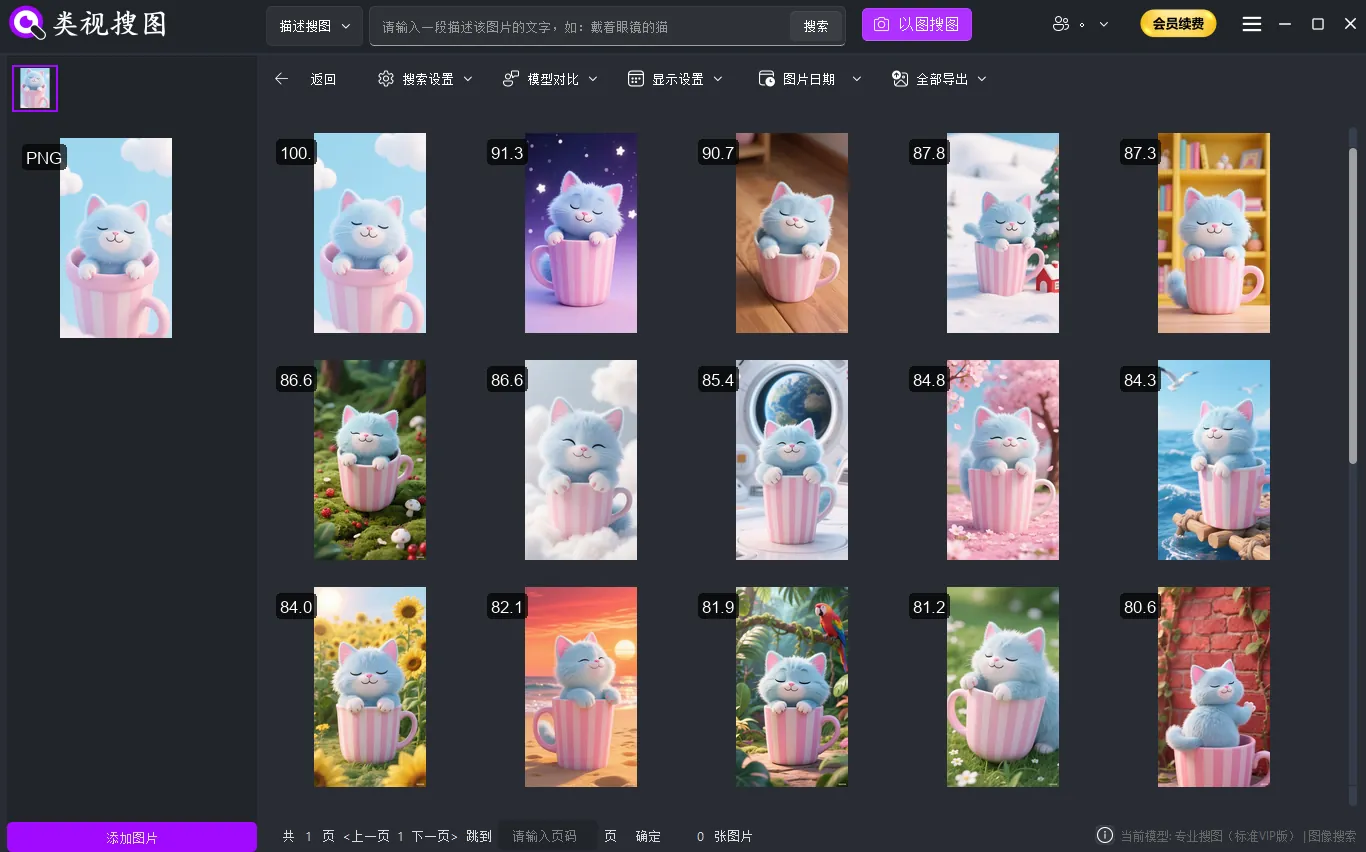 Caption: Use folder and time filters first, then open the source folder to act on the real files.
Naming rules that make fuzzy filename search reliable
Consistency turns fuzzy filename search into a stable habit. A simple naming structure is enough:
- Fixed order: project/client + content + version + date
- Single separator: stick to hyphen or underscore, not both
- Expandable versioning: v1/v2/v3 or 01/02/03 for easy matching
- Series prefixes:
banner-,detail-,hero-to group related assets - Stable date format:
YYYY-MMorYYYY-MM-DDso you can filter quickly
Template examples:
| Scenario | Naming structure | Example |
|---|---|---|
| Screenshot archive | topic-module-date | review-payment-2026-01 |
| Product images | sku-color-angle | 3201-white-front |
| Design assets | project-size-version | brandA-1080x1350-v3 |
When legacy names are messy, do a minimal clean-up: add a prefix or version tag without renaming everything. Fuzzy filename search is tolerant of variation, but it needs a clear differentiator to separate series.
If you manage multiple drives, put a short drive marker in the filename (for example, d2-), so fuzzy filename search can distinguish archives from active work without extra folders.
If you already have a naming standard for design or product files, keep it and only add the missing fragments. The goal is consistency, not a massive renaming project.
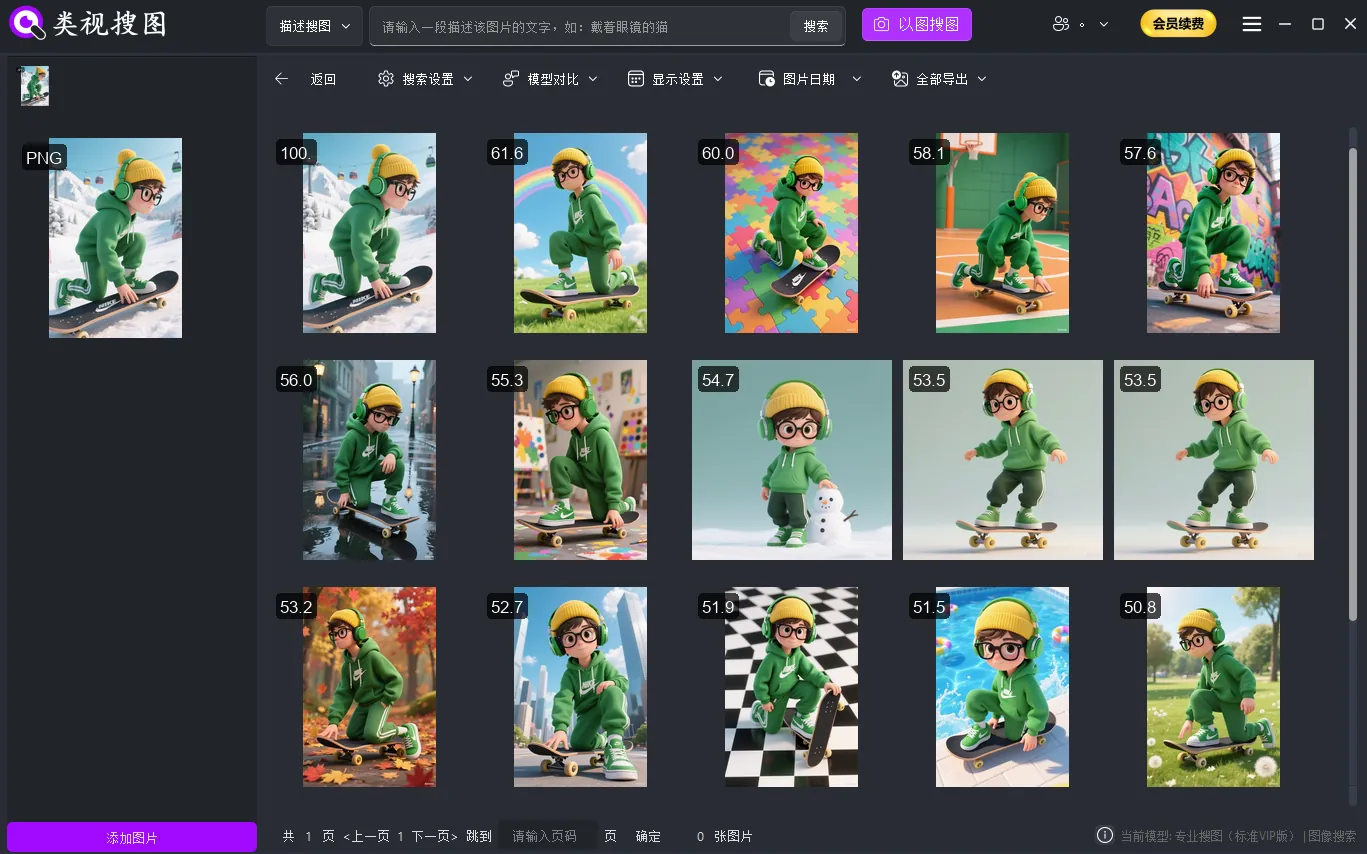 Caption: Consistent prefixes and version tags make fuzzy filename search pull the right series quickly.
Common mistakes and a quick execution checklist
Common mistakes that slow fuzzy filename search down:
- Indexing every drive on day one, which floods results with noise
- Searching with long phrases instead of short distinguishing fragments
- Skipping renaming after a successful find, so the next search is just as hard
- Renaming folders too frequently, which breaks the index structure
Troubleshooting signals:
- Too many results: shorten the keyword and add a version or date fragment
- Too few results: remove strict qualifiers and check that the folder is indexed
- Wrong versions showing: confirm that old drafts were moved to the archive
Quick execution checklist:
- Index 1–3 high-frequency folders
- Run a fuzzy filename search with “project + version” keywords
- Refine by folder, then by time range
- Rename the best version and archive older drafts
- Spend 10 minutes weekly cleaning the review folder
Fuzzy filename search is the foundation of local image management because it is simple, fast, and repeatable. Start with one folder, test three real keywords, and build a naming habit that makes every future search easier.
Suggested next loop:
- Index one high-frequency folder
- Run a fuzzy filename search for three real tasks
- Rename the final versions and move old drafts to review
Ready to try it? Download here: /download.