
How to Search NAS Images Fast: Local Visual Search for Network Shares
When a NAS becomes the home for product images, design deliveries, and screenshot evidence, the hardest part is not storage—it is retrieval. NAS image search slows down the moment you rely on filenames, because paths are deep, versions multiply, and permissions hide half of the library.
Teams often inherit years of legacy folders, and a single asset might live in multiple exports across multiple shares. That is why “I remember the layout” does not help you locate the file fast. You need a search method that uses visual content instead of naming conventions.
Local visual search fixes that by turning “what the image looks like” into the search handle, without uploading files to the cloud. This article lays out a practical, repeatable workflow for fast NAS image search across network shares, from indexing to refinement and archiving.
Why NAS image search is slow in shared environments
NAS storage is powerful, but shared environments create structural friction:
- Deep, unstable paths: projects migrate and folder names change, breaking memory-based navigation.
- Fragmented permissions: different teams can see different subsets, so indexing misses targets.
- Version noise: multiple exports of the same asset inflate results and hide the best file.
- Non-semantic filenames: timestamps tell you when, not what.
Traditional search only sees filenames and paths. Fast NAS image search needs a content-first approach that lets you filter by visual similarity and folder structure.
If your team works with external vendors or rotating freelancers, the pain intensifies. Each partner brings a different naming scheme, and shared folders become a long list of “final-final-02” exports. Visual search eliminates that naming chaos while keeping the assets on the NAS.
How local visual search works for NAS network shares
Local visual search does not move your NAS content to the cloud. It builds a local index while reading the network share path and then provides multiple search entrances:
- Index network folders so NAS assets become a local searchable library.
- Visual similarity search to find the same product or layout even when filenames differ.
- Semantic search when you only have a description, not a reference image.
- OCR text search for screenshots, reports, and slides with visible text.
- Locate source folder to jump back to the NAS path for reuse or archiving.
This keeps data on the NAS while making the search experience fast and stable. For setup details, use the first-time indexing guide and the library management guide.
Treat the index as a local catalog of the NAS, not a copy. The files stay on the network share, and your search UI simply references their paths. This is why permissions and stable folder paths matter: the index only works when it can consistently reach the files.
Fast NAS image search workflow: index → search → refine → locate
Run this workflow once and repeat it for each team library. It is the minimum loop for fast NAS image search.
Step 1: index the right network share folders
Start with 1-3 high-frequency directories such as “Product Images/Main Library” or “Design Deliveries/Final”. Avoid scanning the entire NAS at once. Clean scope first, then expand.
Good starter folders usually fall into three buckets:
- Main library for reusable assets
- Current project delivery for active work
- Evidence or screenshots for documents and QA
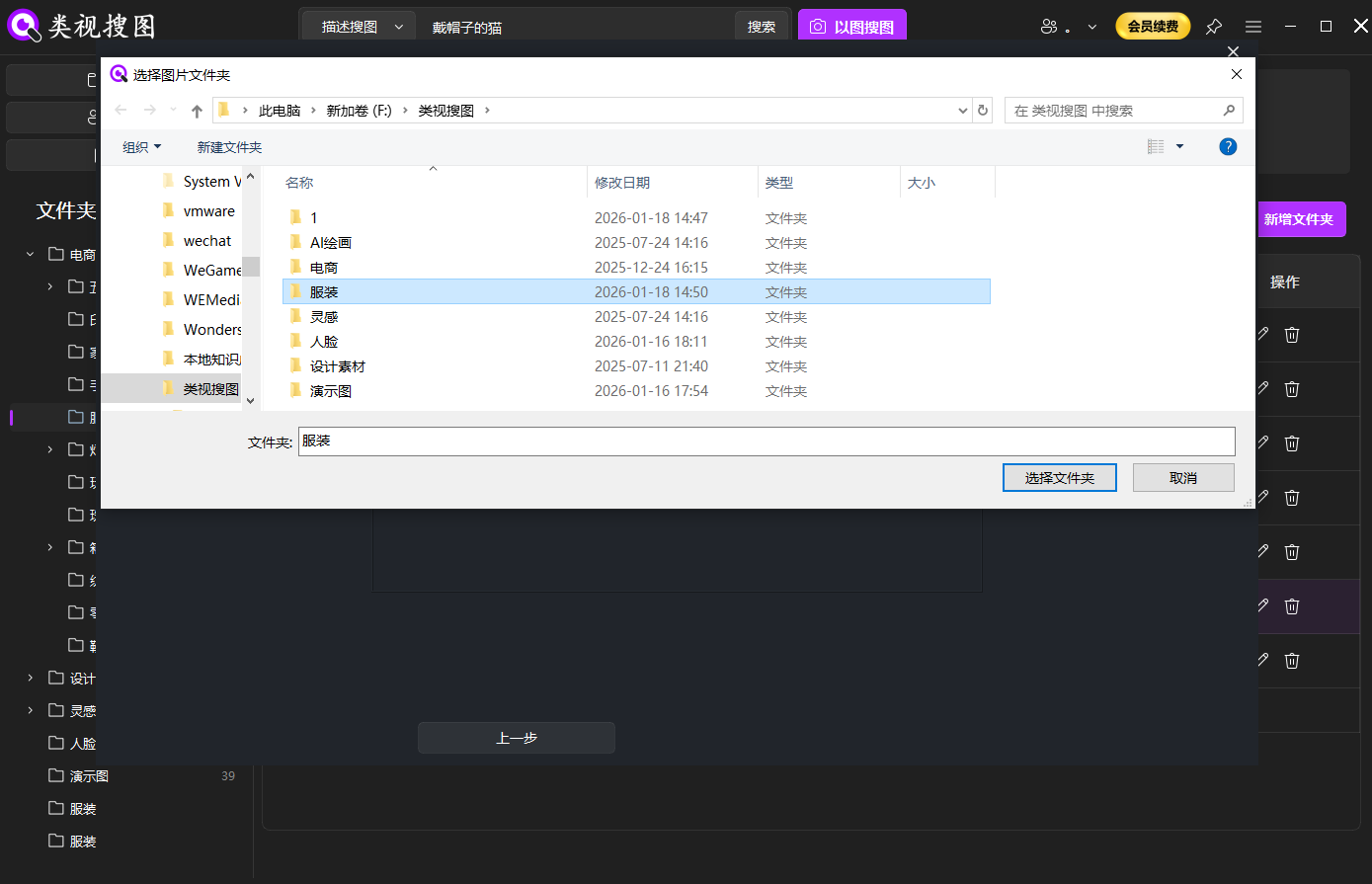 Caption: Index high-frequency NAS folders first so NAS image search stays stable.
Practical tip: map the network share to a stable drive letter or a fixed UNC path so the index does not drift.
Step 2: upload a reference image to start similarity search
Pick a clear, information-dense reference image and run similarity search. Use a strict similarity threshold to lock the closest matches first, then loosen it to include alternate angles or crops.
Reference image tips:
- Use full-frame images instead of cropped details
- Prefer the cleanest version (highest resolution, minimal compression)
- For screenshots, include the title bar or key text if you plan to use OCR later
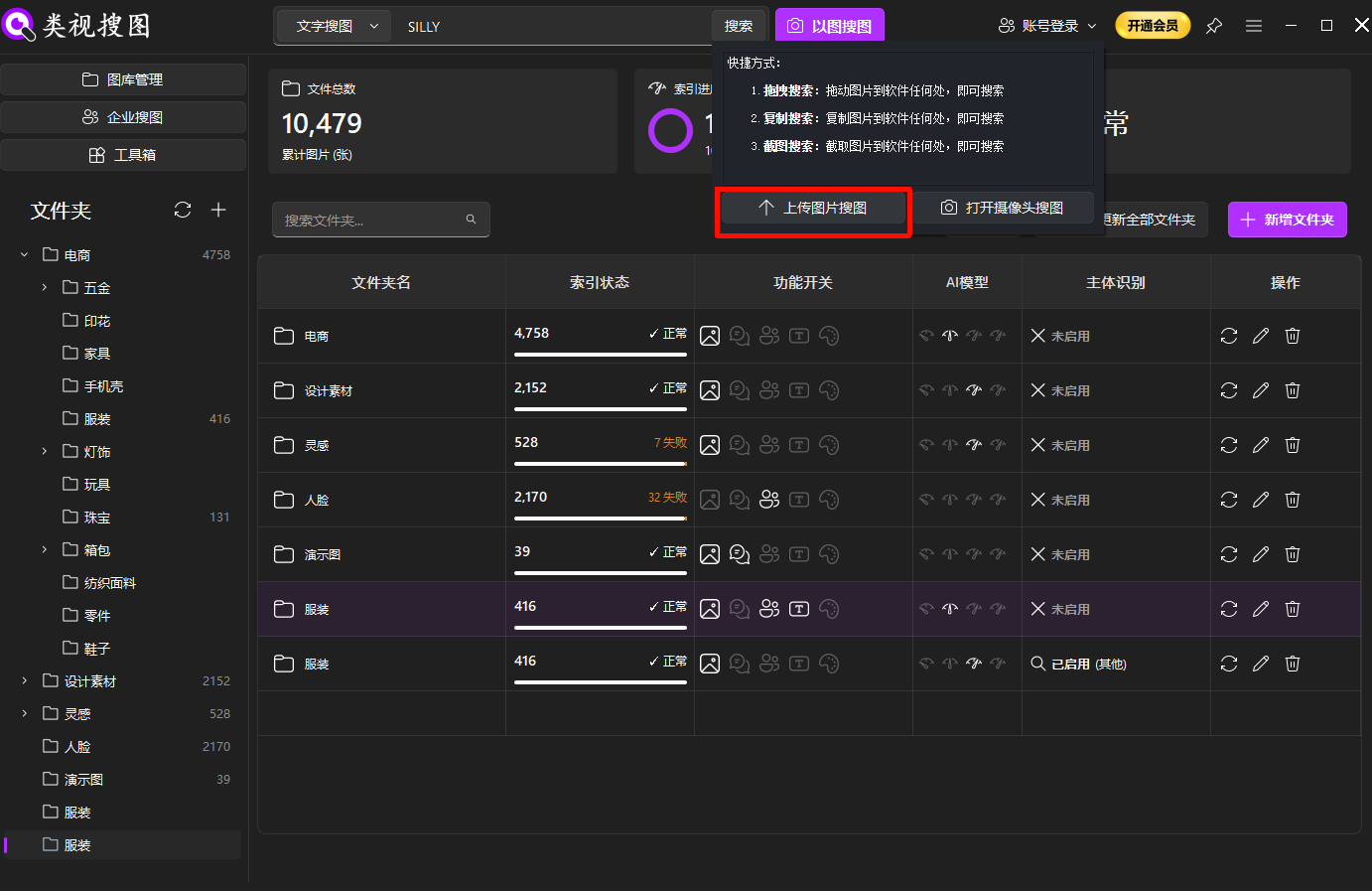 Caption: Reference images beat filenames when you need fast NAS image search.
If you do not have a reference image, start with semantic search, then use similarity search to narrow the best matches.
Step 3: refine results with similarity + folder filters
When results are large, refine in this order: raise similarity → filter by folder → widen similarity slightly to capture variants. See the results browsing guide for filter tips.
This sequence keeps results readable. Similarity narrows the content, folder filters remove unrelated projects, and the final widening step restores missing angles or versions.
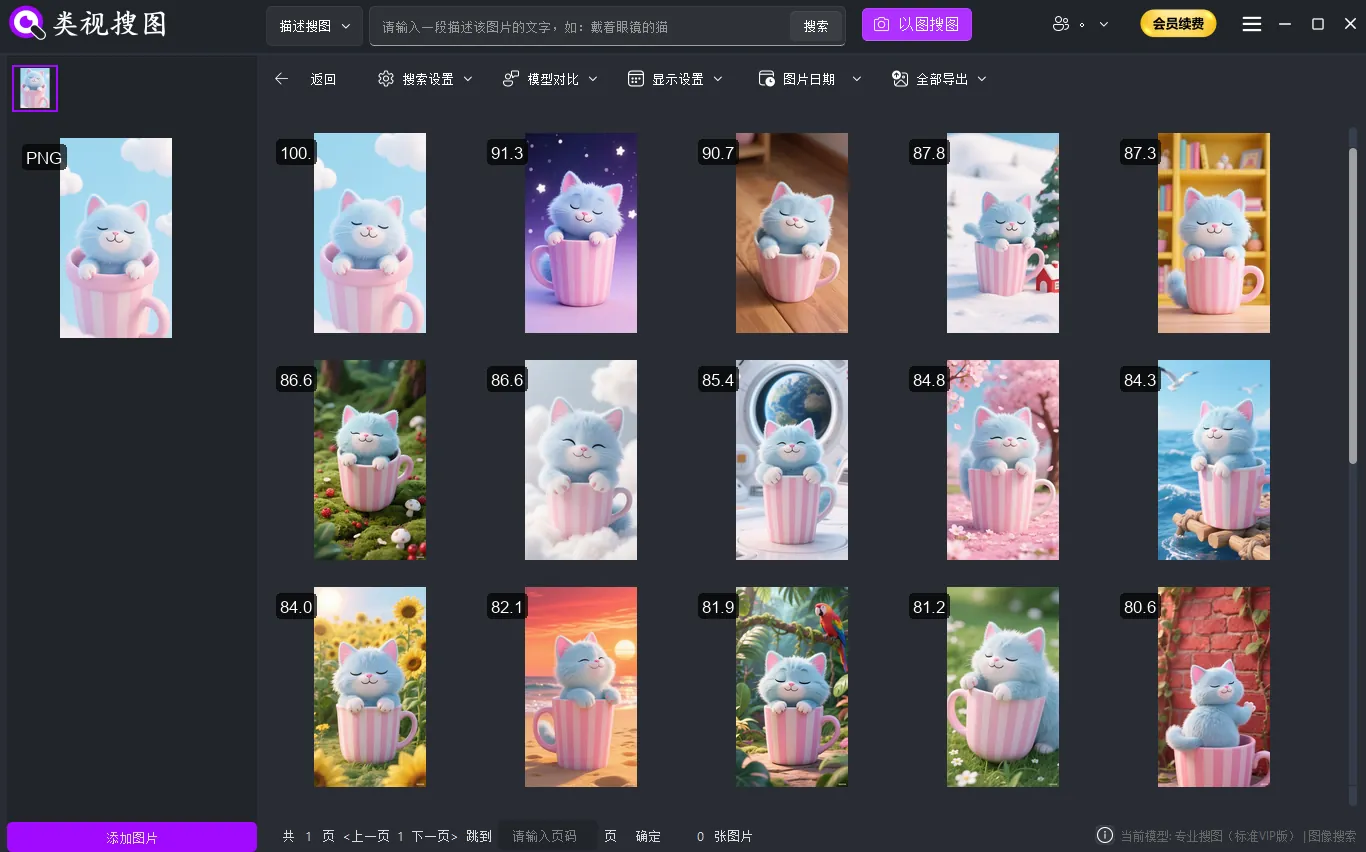 Caption: Similarity filters plus folder filtering keep NAS image search fast and accurate.
Step 4: locate the source folder and archive the winning version
Once you find the right file, jump to the NAS source folder and archive the “reusable version” into a clean delivery library. This step is what turns a search into a reusable asset workflow.
If multiple teams use the NAS, agree on what counts as “reusable” and keep it in a designated delivery folder. It reduces duplicate exports and gives everyone the same source of truth.
Folder and permission strategy for stable NAS image search
Fast NAS image search relies on a directory structure that stays stable for the team. Use a simple three-layer model:
NAS Library/
  Main Library/
  Project Library/
    Project A/Final/
    Project A/History/
  Temporary/
  Screenshot Evidence/
Recommended practices:
- Keep core folders stable: avoid renaming or moving the main libraries.
- Separate final vs. historical: keep “Final” assets in one place, move older exports to “History”.
- Align permissions: make sure the indexing account can read every folder you expect to search.
- Schedule indexing: set a daily or weekly sync to prevent “missing” assets.
Ownership roles help the system stay clean. One person can own folder structure, while another owns weekly cleanup and version archival. This prevents the library from drifting into chaos after initial setup.
For larger teams, see the enterprise collaboration search solution to align permissions, roles, and folder ownership.
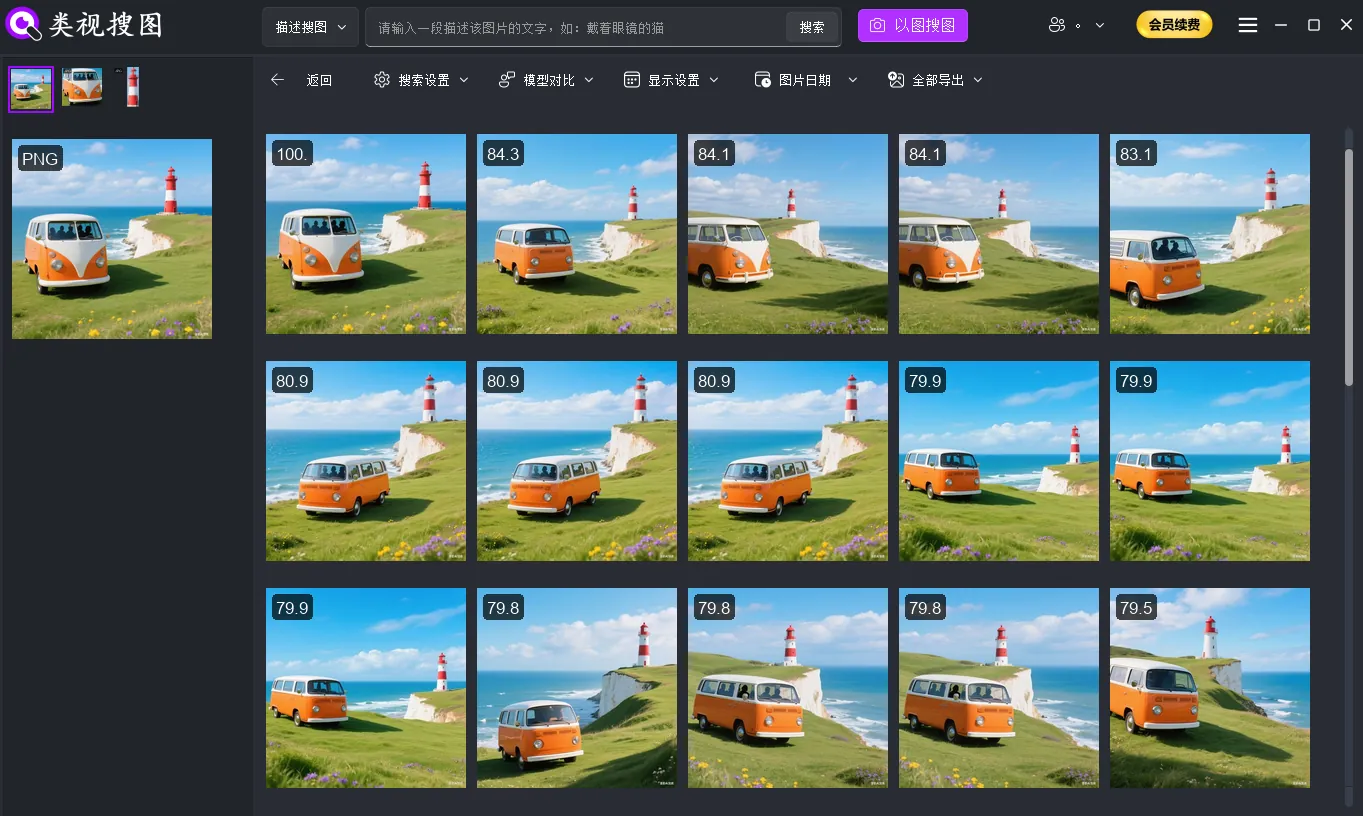 Caption: A stable shared library makes NAS image search predictable for every team member.
Operational checklist for network share search
Use this checklist to keep NAS image search fast over time:
- Index only high-frequency folders first, expand later.
- Sync after large imports so new assets appear in search.
- Deduplicate weekly to keep version noise low.
- Standardize reference images (clear, full-frame, high contrast).
- Archive reusable assets into a “Final” or “Reusable” folder.
- Review permissions monthly so indexing does not lose access to new folders.
FAQ
Q: I can see the file in NAS, but search cannot find it. Why?
A: Confirm the folder was indexed, the sync finished, and the indexing account has read access to that directory.
Q: Results are too many to review.
A: Raise similarity first, filter by folder, then slightly widen similarity to capture variants.
Q: Indexing feels slow or stuck.
A: Reduce the scope to high-frequency folders, verify NAS connectivity, then expand in batches.
Summary and next step
Fast NAS image search is a repeatable loop: index the right folders → run similarity search → refine with filters → locate and archive the best version. When the workflow is stable, teams stop hunting for filenames and start reusing assets with confidence.
Ready to try it? Download FlareSeek and index one shared folder today.