
Manage Meeting Screenshots with OCR Keyword Search
Meeting screenshot management usually breaks when the team needs proof on the spot. A product review, bug triage, or competitive audit comes with dozens of screenshots, yet no one remembers filenames. With OCR, the words inside the screenshot become searchable, so meeting screenshot management turns into keyword search instead of folder digging.
This guide explains a practical local workflow with FlareSeek: how to index the right folders, run OCR keyword search, refine results, and archive meeting evidence so it is reusable next time.
Why meeting screenshot management falls apart
The problem is not volume alone. It is the loss of context:
- Fragmented sources: meeting apps, browsers, prototypes, and chat tools all generate screenshots
- Non-semantic names: timestamps tell you when, not what
- Version noise: multiple captures of the same discussion inflate results
- High-pressure retrieval: someone asks “where is that slide?” during a meeting
OCR keyword search turns those screenshots into a text index that can be searched by feature name, error code, or metric label.
Meeting screenshot management workflow: index → OCR → refine → archive
This is the minimum workflow you can run in 10 minutes and repeat weekly.
Step 1: index the right meeting folders
Start with the folders that contain recurring meeting evidence, such as “Meeting Screenshots/PRD Review” or “Bug Review/2026-Q1”. For setup, see the first-time indexing guide.
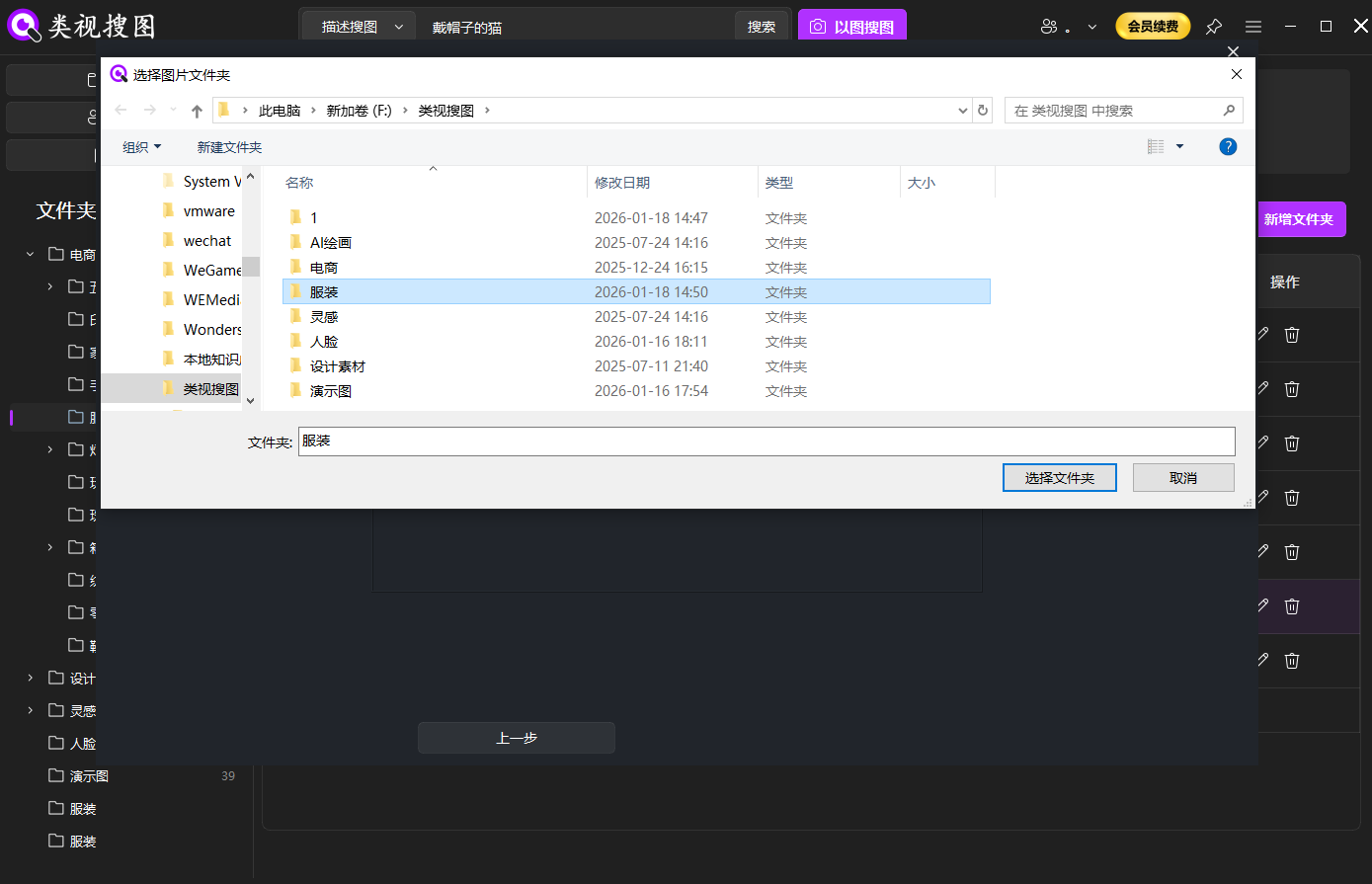 Caption: Index high-frequency meeting folders first so meeting screenshot management stays fast.
Step 2: enable OCR and search by keyword
Switch the search mode to OCR/text search, then enter the most visible keyword from the screenshot—feature name, tab label, or error code. For the UI walkthrough, use the text search guide.
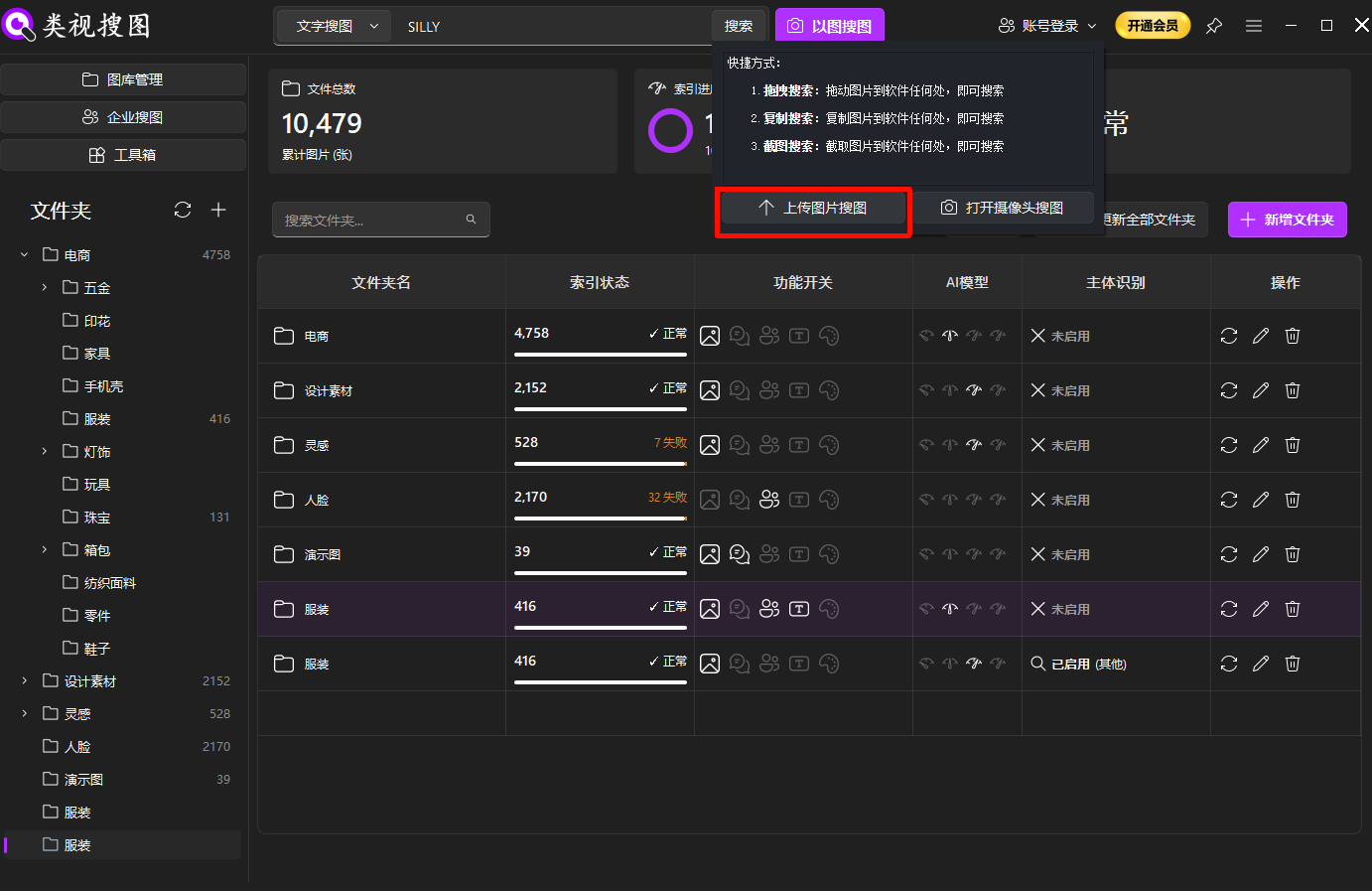 Caption: OCR keyword search replaces filenames and makes meeting screenshot management reliable.
Step 3: refine results and open the source path
When results are broad, filter by folder and time first, then open the source path to confirm the exact capture. More tips are in results browsing.
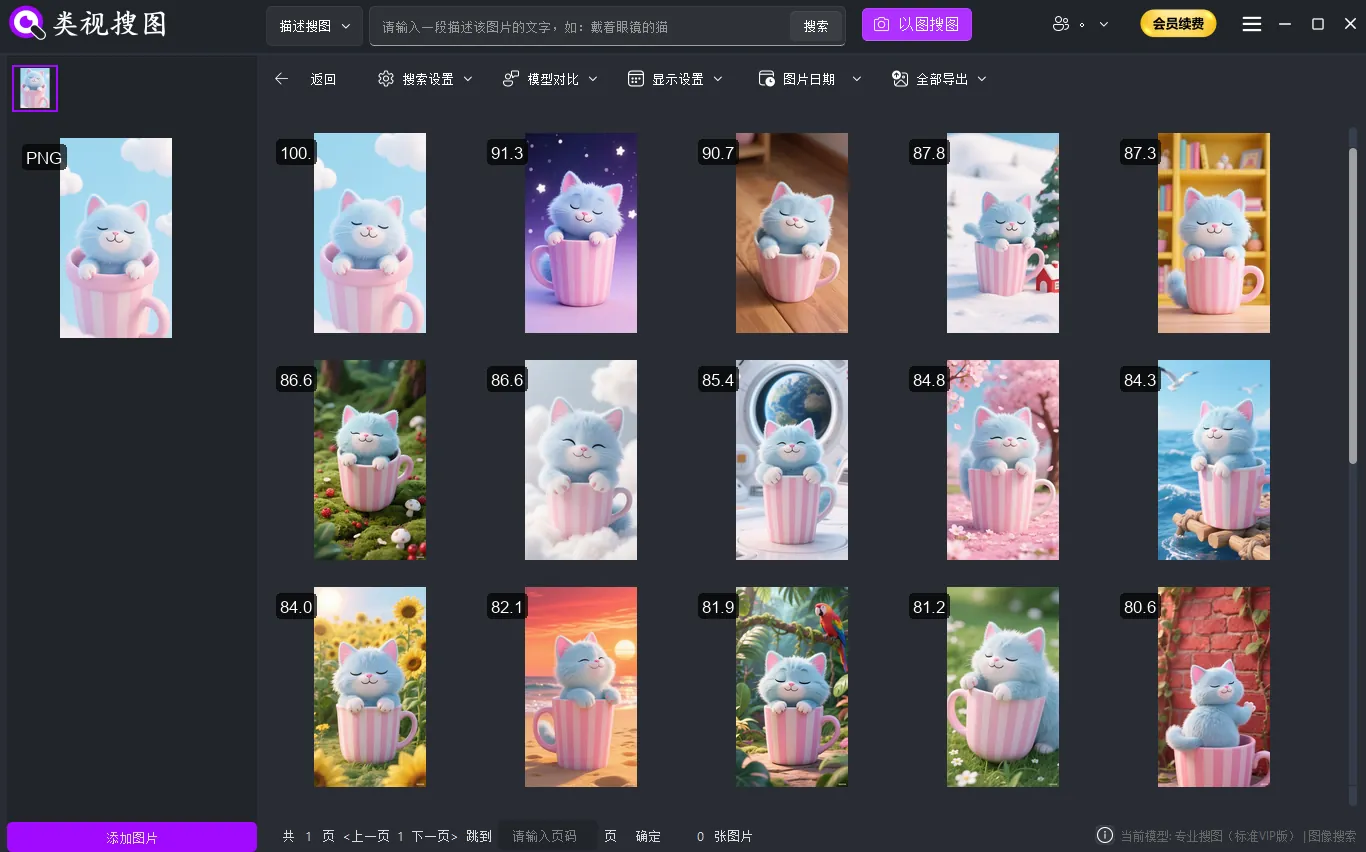 Caption: Folder filters plus OCR keyword search narrow results quickly.
Step 4: archive and reuse
Once you find the right screenshot, copy it into a reusable “meeting evidence” library organized by project or decision. This step is what keeps future retrievals fast.
OCR keyword templates for meeting screenshot management
OCR works best with words that are large, specific, and visible in the UI. Use these templates to build queries:
- Module + state/action: “checkout error”, “login redirect”, “payment failed”
- Metric + context: “conversion rate 2.1%”, “SLA 99.9%”
- Feature + UI element: “member price modal”, “order list filter”
- System message + code: “timeout 504”, “invalid token”
Start with the most prominent word in the screenshot, then add a second keyword only if the results are still too broad.
When OCR is the fastest way to find meeting evidence
OCR keyword search delivers the biggest gains in these meeting scenarios:
- Product reviews: locate screenshots by feature name or field label
- Bug triage: search by error codes, alerts, or system messages
- Competitive analysis: pull competitor features by menu labels
- Data reviews: find dashboard captures by chart titles or metrics
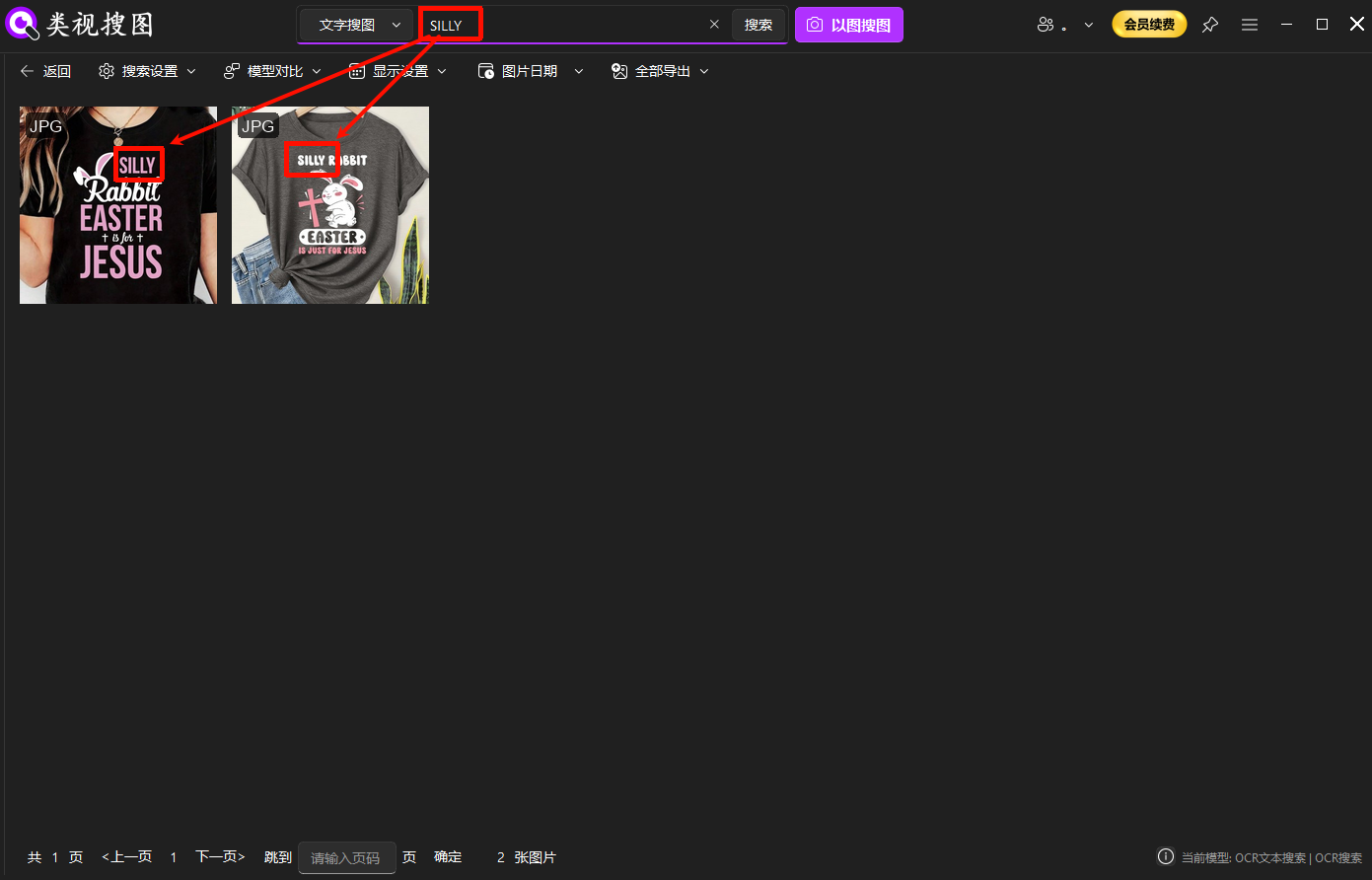 Caption: When text is visible, meeting screenshot management becomes keyword search.
Weekly maintenance checklist
A simple rhythm keeps the library clean:
- Remove duplicates weekly: keep the clearest, most complete capture
- Standardize folders: structure by “topic / date / decision”
- Sync indexing after new meetings: ensure OCR covers fresh screenshots
- Maintain a keyword list: log the product names, metrics, and error codes you reuse
This prevents the library from drifting into noise again.
FAQ
Q: OCR finds nothing even though text is visible. Why?
A: Check resolution and font size first. Then try shorter keywords and verify indexing completed.
Q: Results are too many to review. What should I do?
A: Restrict to the meeting folder first, then add a second keyword or raise similarity.
Q: Should I name screenshots manually?
A: If OCR is enabled, folder structure matters more than filenames. Focus on clean project folders and consistent archiving.
Summary and next step
Meeting screenshot management is a repeatable loop: index the right folders → OCR keyword search → refine results → archive evidence. When you treat text as the search handle, meetings stop losing context and screenshots stop disappearing.
Next steps:
- Index 1-2 meeting folders today
- Run five real OCR keyword searches
- Archive the wins into a reusable evidence library
Ready to try it? Download FlareSeek.