
Find Products in Complex Backgrounds via Subject Recognition
Complex product photos look great for marketing, but they are painful for search. Props, models, and busy scenes dilute the product signal, so local image search often misses the exact match. This guide focuses on local subject recognition so you can keep search results centered on the product, not the background.
Why complex backgrounds break product search
Most teams notice two symptoms at the same time: they either get too many unrelated results or no reliable matches at all. The root causes are predictable:
- Background dominates the frame and reduces the product’s visual weight.
- Multiple products in one shot blur what “similar” should mean.
- Lighting and shooting locations change and throw off whole-image similarity.
- Version sprawl mixes crops, channel sizes, and edit variants.
- Overwide indexing scope pulls noise into the candidate set.
If the search engine treats the entire scene as the signal, the product itself becomes secondary. That is why complex backgrounds feel “unsolvable” without subject recognition.
The operational impact is real. Merchandising teams lose time re-validating the latest hero shot, designers second-guess which asset is approved, and customer support cannot trace the source folder fast enough. Complex scenes make all of this worse, because the background overwhelms the object you actually care about.
How local subject recognition fixes complex backgrounds
Local subject recognition splits a photo into individual subjects and lets you search with the subject you care about. It reduces background influence and keeps similarity focused on the product, which is ideal for scene-heavy ecommerce photography.
Key benefits you get from subject recognition:
- Background weight drops so props and scenery stop dominating matches.
- Multi-subject selection lets you search one item even in a bundle shot.
- Reusable results make it easier to confirm the latest version and archive it.
Use subject recognition when the same SKU appears in multiple scenes, when props or models overwhelm the frame, or when you need fast duplicate checks before publishing. It is also helpful for catalog cleanups because the product stays consistent even if the styling changes.
Because recognition and search run locally, sensitive product images stay on your machine. That is essential for private launches, supplier samples, and pre-release campaigns where assets must not leave the organization.
Enable and configure it in the app settings and choose the target subject type as needed.
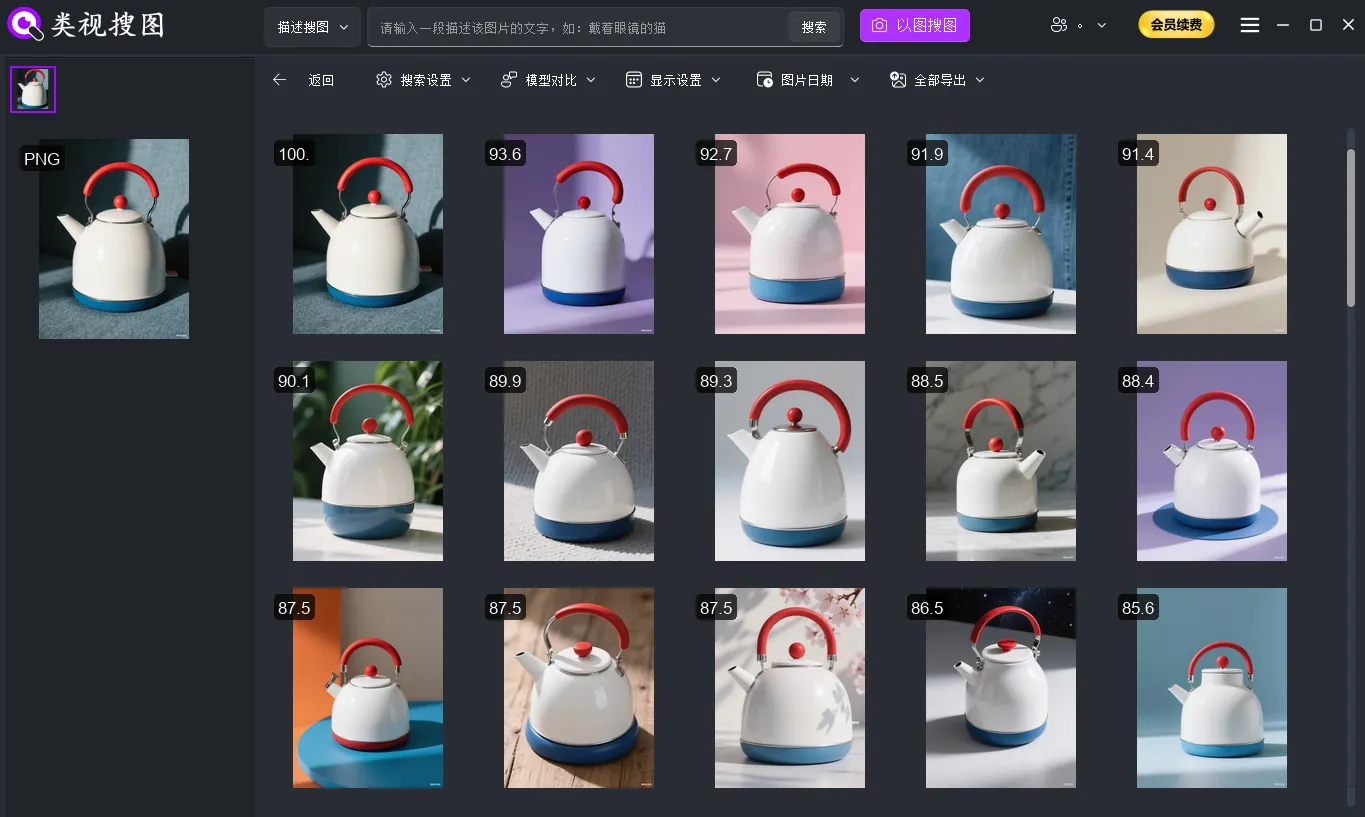 Caption: Local subject recognition keeps similarity centered on the product, not the scene.
Workflow: index, search, and converge results
A stable workflow keeps complex backgrounds from derailing search. Use this three-step loop and reuse it across SKUs.
Step 1: Index a clean, high-frequency scope
Start with a tight folder scope (hero shots, detail shots, campaign assets). Keep noise out so similarity stays clean. Follow the setup guide: /docs/first_init.
Practical scope tips:
- Exclude downloads, chat caches, and temporary export folders.
- Group by SKU or collection so filters map to the way the team works.
- Keep the path stable so “open source folder” actions do not break.
If your catalog is huge, split it into a “core library” and a “project library.” Index the core library for stable SKUs, then add project folders only when a campaign or launch needs them. This keeps search results focused and reduces the time spent re-indexing large folders.
After indexing, verify searchable counts and confirm subject recognition is enabled in the gallery settings: /docs/gallery-management.
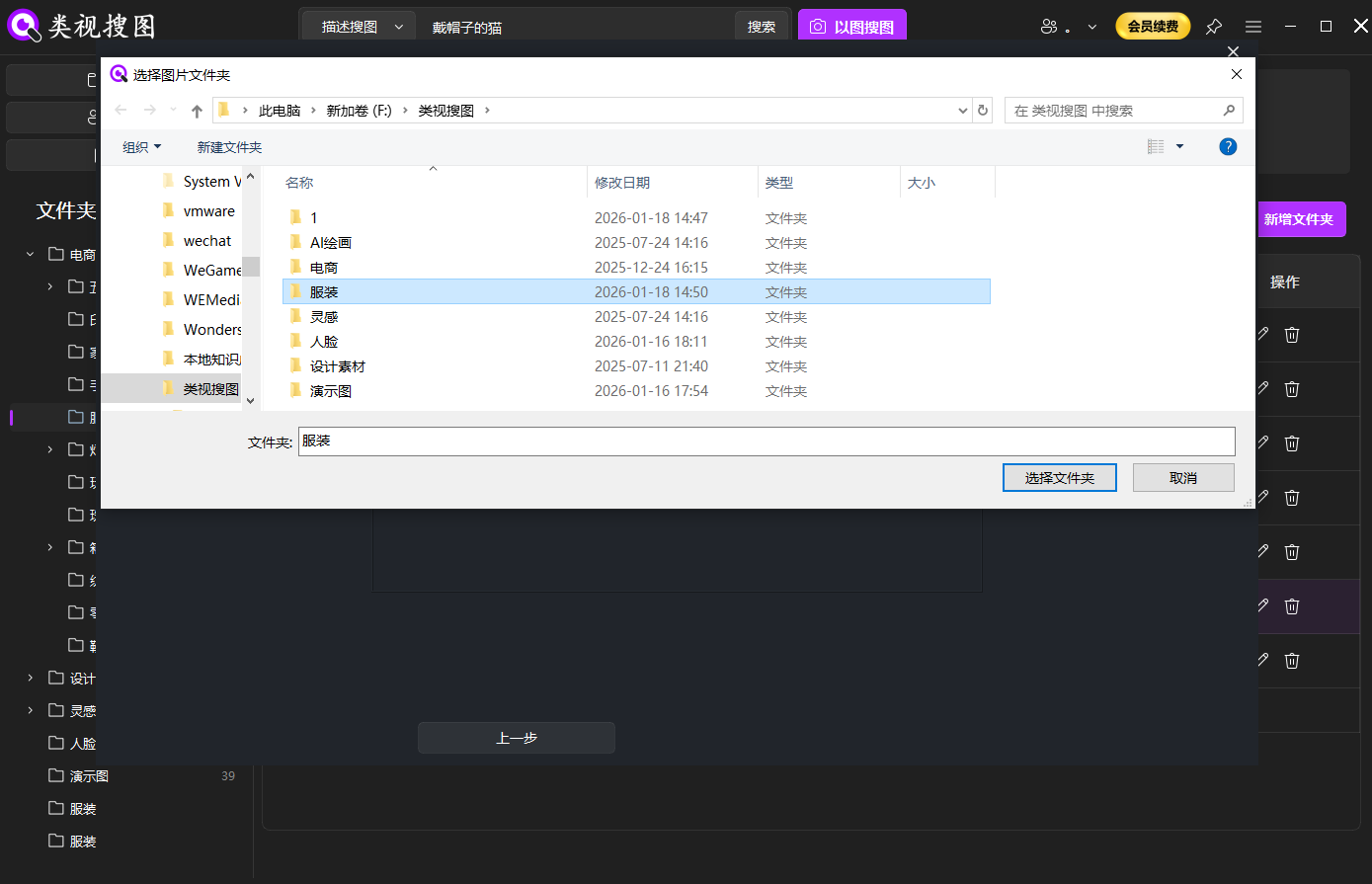 Caption: A focused index scope prevents background-heavy noise from flooding results.
Step 2: Launch a reference search and pick the subject
Use drag, paste, or upload to start local reverse image search. Reference details: /docs/local-image-search.
When possible, start from a reference with a clear silhouette and minimal occlusion. If the background still overwhelms the product, crop to the main item before you search.
Reference image checklist:
- Use a straight-on hero shot when you need the exact SKU.
- Use a lifestyle image when you need context variants in the same style.
- Save one detail crop of labels, textures, or logos to lock distinctive features.
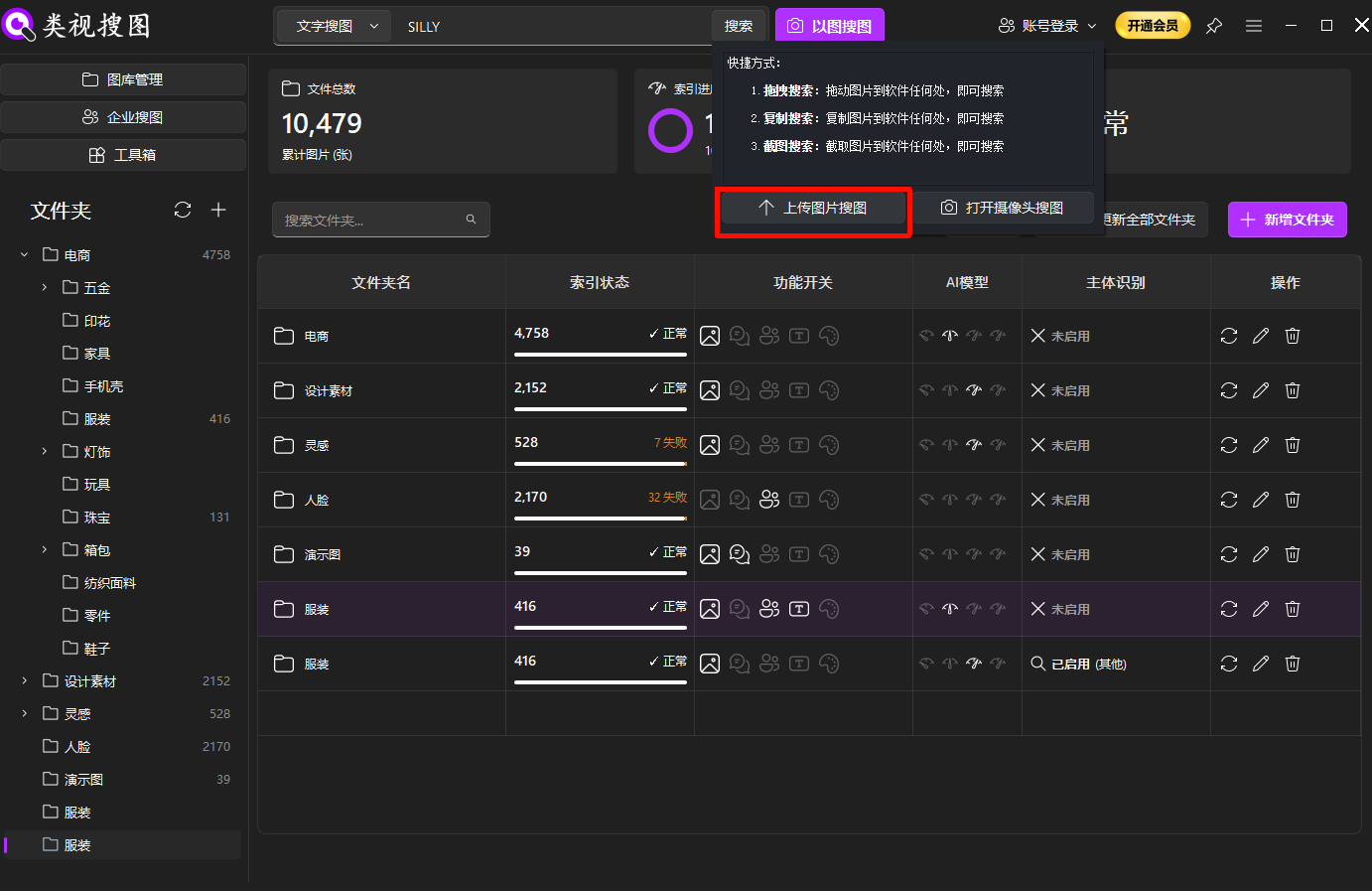 Caption: Start with a clear reference image, then pick the product subject.
When the shot includes multiple items, choose the target subject from the subject list so the model, props, or secondary items do not hijack results.
Step 3: Refine with similarity and folder filters
Converge results with a “tight then wide” strategy:
- Raise similarity to lock the closest matches.
- Filter by SKU, category, or channel folder.
- Lower similarity to cover alternate angles and lighting.
If you need a baseline, try 90%+ for exact duplicates, 80–90% for alternate angles, and 70–80% for scene variations. Record the threshold that works for each product type so the team can reuse it.
Filtering tips: /docs/browsing-images.
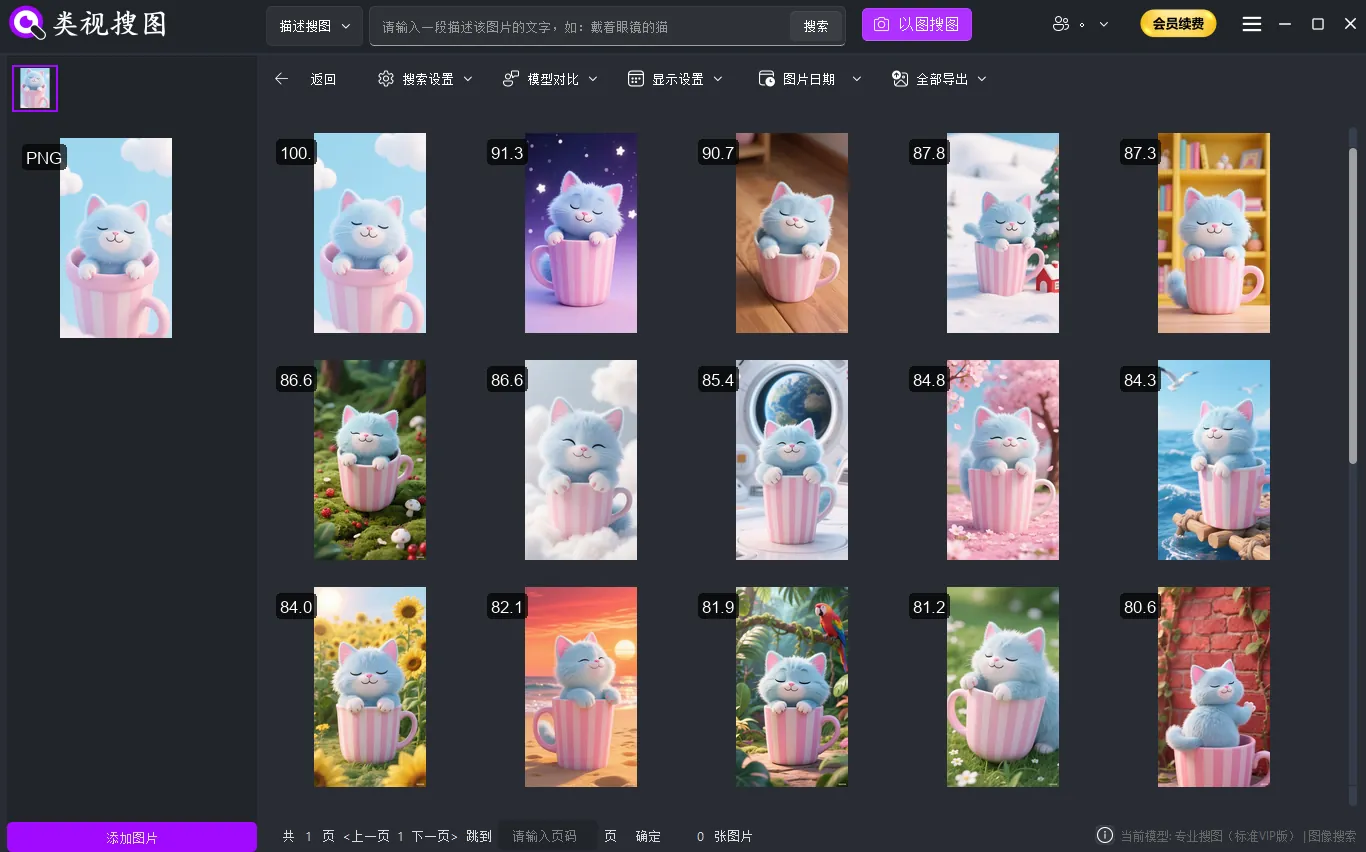 Caption: Converge results first, then open the source folder for reuse.
Once you locate the source folder, you can export, replace, or archive the exact version the team needs.
Team checklist for repeatable results
Complex background search becomes reliable only when the team uses the same rules. A simple checklist helps:
- Record thresholds by category (e.g., footwear vs. jewelry) so settings stay consistent.
- Align folder naming with SKU, channel, and season to make filters meaningful.
- Sync indexing after batch edits to avoid missing newly retouched versions.
- Store a reference pool in a shared location so every teammate starts from the same anchors.
Treat these notes as a lightweight SOP. The goal is to reduce subjective judgment and make search results predictable across teams and campaigns.
Schedule a short review every month to refine the thresholds and folder scope. As new categories are added, capture one approved reference per SKU so the team does not reinvent the same search setup.
Reference image strategy for complex backgrounds
Subject recognition works best when your reference images are intentional. Use a small checklist so every search starts strong:
- Three reference types: a clean hero shot, a lifestyle scene, and a detail crop.
- Prioritize clear silhouettes so the product outline is consistent.
- Crop to the subject when background overwhelms the frame.
- Split multi-item shots into single-item references for each product.
- Preserve identifiers such as logos, textures, and packaging details.
- Maintain a reference pool of 2–3 images per SKU for reuse.
Capture one clean reference during every shoot and store it with the SKU so future searches start from a reliable anchor. This reduces background noise and makes local subject recognition more predictable across campaigns.
If you need to compare multiple suppliers or factories, keep one reference set per supplier. It lets you isolate quality differences without mixing results from different sources.
For seasonal launches, archive last season’s approved hero images in a dedicated folder and keep them indexed. You can then quickly confirm if an old asset can be reused or needs to be replaced.
FAQ: complex background search issues
Q: Results still feel noisy. What should I adjust first?
A: Increase similarity, then filter by SKU folder. If the background still dominates, crop the reference image and retry with subject recognition enabled.
Q: A new scene photo does not show up in results. Why?
A: The folder may not be indexed or the index is outdated. Sync the folder and re-check searchable counts. See the troubleshooting list: /docs/faq.
Q: I only want one item from a bundle shot. How do I isolate it?
A: Use the subject list to choose the target item, or search with a cropped reference image that contains only the product.
Conclusion and next step
Complex backgrounds do not have to break product search. With a clean index scope, local subject recognition, and a repeatable filter strategy, you can consistently find the right version and reuse it across teams. Start with one high-frequency folder, build a small reference pool, and scale from there.
Download and try the workflow: /download.